
Give and end a hall pass
Give a pass in one or two taps, watch who is out of class, and check students back in when they return. If you haven't yet, set up your quick buttons first, so your most-used passes are one tap away.
Give a pass to one student
-
1. Choose your class period
After you sign in you land on your class grid. Choose a period at the top, and your students for that period are listed with their names and how many passes each has had Today.
-
2. Open the student
Select the student's name to open their page.
-
3. Give the pass
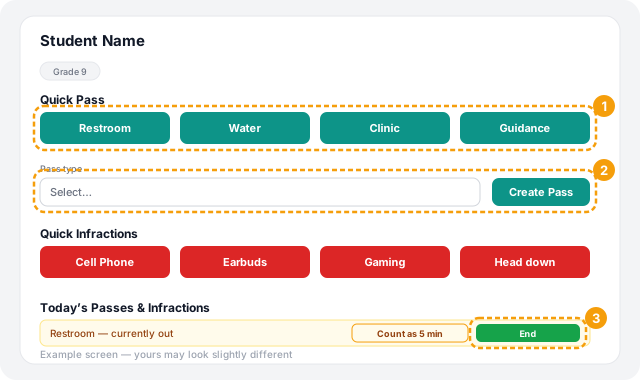
Under Quick Pass, choose one of your four buttons, such as Restroom. The pass starts straight away.
For any other type, use the Pass type dropdown. If the pass is going to another teacher, such as Guidance or an Office visit, a Destination teacher list appears. Pick the teacher, then choose Create Pass.
Give a pass to several students at once
- 1. On your class grid, choose Select Students.
- 2. Select each student who is leaving. A bar shows how many you have selected.
- 3. Choose Give Pass. Pick the Pass type, choose a Destination teacher if the pass type needs one, add Notes if you like, and confirm.
See who is out and check them back in
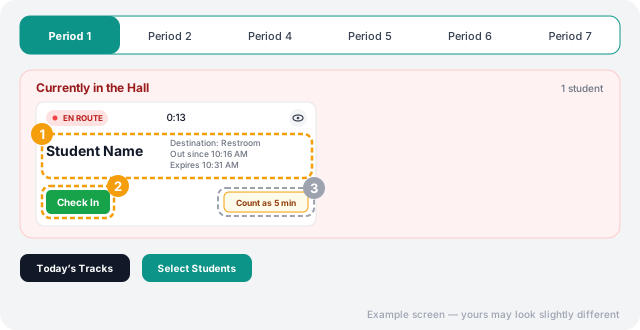
Students on a pass appear in Currently in the Hall at the top of your class grid. Each card shows the student's name, where they are going, when they left (Out since), when the pass runs out (Expires), and a live timer.
When the student returns, choose Check In at the bottom left of their card. You can also click their name and details in the middle of the card. Either way the pass ends right then and HallTracker records how long they were really out.
Count as 5 min is different. It records the pass as lasting 5 minutes, however long the student was actually gone, and it skips the automatic infraction for a pass that ran long. Use it only when you want that, for example when you don't want a late return counted against the student. HallTracker asks you to confirm before it does this.
You can also open the student's page and, on their active pass under Today's Passes & Infractions, choose End (check the student back in) or Count as 5 min.
Try it first in Practice Mode
Choose Practice Mode at the top right of the tracker to try giving and ending passes without touching your real records. A PRACTICE label shows while you are in it, and Exit Practice takes you back. Infractions can't be recorded in Practice Mode.
Troubleshooting
Next: Record an infraction.
Still stuck? Contact us and we'll help.