
Record an infraction
Record an infraction for one student in a tap, or for several students at once. If you haven't yet, set up your quick buttons first, so your four most-used infractions are one tap away.
Record an infraction for one student
-
1. Open the student
From your class grid, choose a period and select the student's name to open their page.
-
2. Choose the infraction
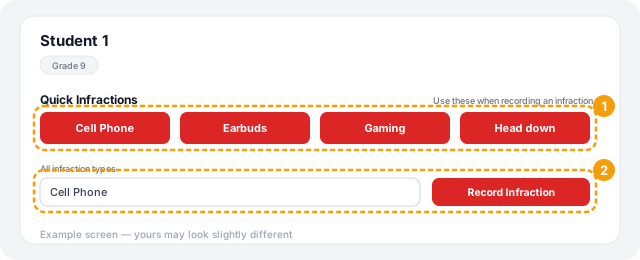
Under Quick Infractions, choose one of your four red buttons, such as Cell Phone. It's recorded immediately — there's no confirmation step, so a tap is final (you can still fix a mistake afterward, see below).
For any other type, use the All infraction types dropdown underneath and choose Record Infraction.
Record the same infraction for several students at once
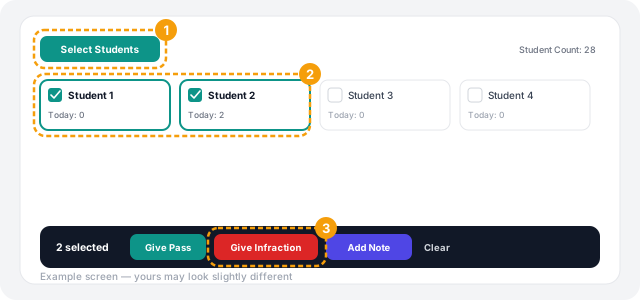
- 1. On your class grid, choose Select Students.
- 2. Select each student who gets the infraction. A bar shows how many you have selected.
- 3. Choose Give Infraction. Pick the Infraction type, add Notes if you like, and choose Record Infractions.
Fixing a mistake
Open the student's page and find the infraction under Today's Passes & Infractions. Three actions are available on it:
- Edit — change the infraction itself.
- Note — add or change its notes. This is always available, even once Edit and Delete aren't.
- Delete — remove it completely. HallTracker asks you to confirm first.
Edit and Delete only appear for a short time after you record an infraction, and only for the teacher who recorded it (or a school administrator). Once that window passes, the record is kept as-is — you can still add a note to explain it, but not change or remove it. An infraction that HallTracker generated automatically, such as a tardy from a pass that ran long, can't be edited or deleted at all, since it reflects what actually happened on the pass.
Practice Mode
Infractions can't be recorded in Practice Mode — it's for trying out hall passes only, without touching your real records. The Quick Infractions section doesn't appear while you're in it.
Troubleshooting
Still stuck? Contact us and we'll help.