
Set up your quick pass and infraction buttons
Every student's page has a row of one-tap Quick Pass buttons and a row of Quick Infractions buttons. You choose which four of each appear, so the ones you use most are always a single click away. Set them up once, before you start giving passes.
Steps
-
1. Open Settings
In the top menu choose Dashboard, then choose Settings in the menu on the left.
-
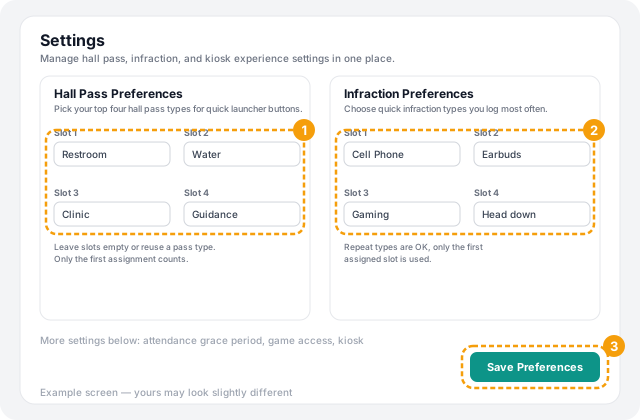
2. Pick your four hall pass types
Under Hall Pass Preferences, choose a pass type for each of Slot 1 to Slot 4, for example Restroom, Water, Clinic and Guidance. These become the four teal buttons on each student's page.
-
3. Pick your four infractions
Under Infraction Preferences, do the same for the infractions you record most often, such as Cell Phone or Earbuds. These become the four red buttons.
-
4. Save
Choose Save Preferences at the bottom right of the page. Your buttons are not changed until you do.
What to expect
- Where they appear: on each student's page, under Quick Pass and Quick Infractions. The other pass and infraction types are still available from the dropdowns underneath.
- Empty slots: you can leave a slot empty, and no button is shown for it.
- Repeats: you can pick the same type in more than one slot, but only the first slot with it counts.
- Your own choices: these settings are yours. Other teachers choose their own buttons.
- Change them any time: come back to Settings whenever your routine changes.
Troubleshooting
Next: Give and end a hall pass.
Still stuck? Contact us and we'll help.