
Set up your pass types and infraction types
Every school has its own lists of pass types (Restroom, Water, Clinic and so on) and infraction types (Cell Phone, Off Task and so on). Teachers choose from these lists when they give a pass or record an infraction. Set up infraction types first, because a pass type can point at one.
You don't start from nothing. A new school comes with a standard set: pass types such as Restroom, Water, Clinic and Guidance, and infraction types such as Class Cut, Off Task and Cell Phone. Restroom and Water are already set to record a Class Cut when a pass runs long. Edit these, switch off the ones you don't want, and add your own.
Where to find them
- In the Admin Panel, open Infractions for infraction types (the page is titled Infraction Types).
- Open Hall Passes for pass types (the page is titled Pass Types).
- Both lists belong to one school. Choose the school at the top and select Apply. A school administrator only sees their own school.
1. Infraction types
-
Choose your school
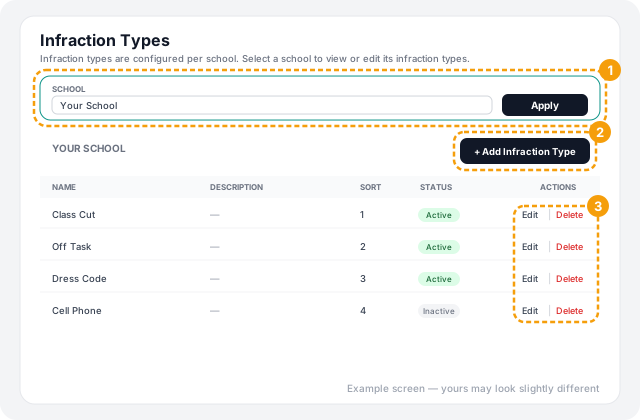
Pick the school and select Apply. The page lists that school's infraction types with their sort order and status.
-
Add a type
Select + Add Infraction Type and fill in:
- Name: what teachers will see, such as Cell Phone. This is the only required field.
- Description (optional).
- Sort Order: lower numbers appear first. Leave it alone to put the new type at the end.
- Active: leave it ticked so teachers can use it.
Select Create Infraction Type.
-
Change or remove one later
Use Edit or Delete on its row. To stop teachers using a type without losing it, untick Active instead of deleting.
2. Pass types
Open Hall Passes, choose your school, then select + Add Pass Type, or Edit an existing one. The list also has a Mapped Infraction column showing which infraction type, if any, each pass type creates automatically.
-
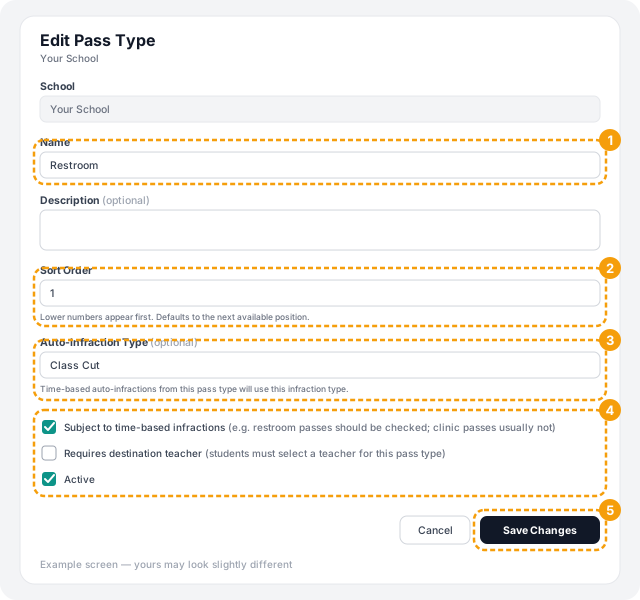
Name, description and sort order
Give the pass a Name teachers will recognize. Sort Order sets the order in teachers' menus, lowest first. It defaults to the next position.
-
Choose an Auto-Infraction Type (optional)
This is the infraction HallTracker records when a pass runs too long. Pick one of your school's own infraction types, such as Class Cut. See How time-based infractions work below.
-
Set the options
- Subject to time-based infractions: tick it for passes that should be timed, such as restroom passes. Leave it off where length doesn't matter, such as a clinic visit.
- Requires destination teacher: tick it when the student is going to another teacher, so a teacher must be chosen when the pass is given.
- Active: untick it to take the pass type out of teachers' menus without deleting it.
-
Save
Select Save Changes (or Create Pass Type for a new one).
How time-based infractions work
When a pass ends, HallTracker checks how long the student was out. If the pass type is subject to time-based infractions and the student was out for at least your school's limit, an infraction is added automatically, using that pass type's Auto-Infraction Type.
- The limit is set per school. In the Admin Panel, edit your school under Schools and set Time-Based Infraction Threshold (minutes). Leave it blank to use the default of 10 minutes.
- It happens when the pass ends, whether a teacher checks the student in or the pass ends on its own.
- No infraction is created when a teacher ends the pass with Count as 5 min. See Give and end a hall pass.
- If a pass type has no Auto-Infraction Type chosen, the automatic infraction is still recorded, but without a type attached. Choose one so it is labeled.
What teachers see
- Teachers only see active types, in sort order and then alphabetical order.
- Each teacher picks their own four quick buttons from your lists. See Set up your quick pass and infraction buttons.
Troubleshooting
Still stuck? Contact us and we'll help.