
Import students and build your sections
Two imports do most of the work: one brings in your student roster, the other builds your sections, enrolls students into them, and can create teacher accounts, all from one file. Do the roster import first — the schedule import matches against students who already exist. If you haven't created your bell schedule yet, do that before either one.
1. Import your student roster
This brings in each student's basic record — it doesn't touch classes or schedules.
-
Open Students → Import CSV
In the Admin Panel, open Students, then choose Import CSV. Choose the school, then upload your file.
-
Match your columns
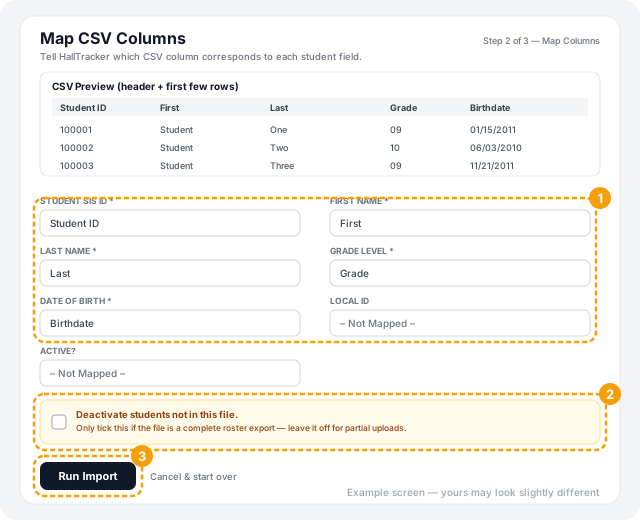
HallTracker shows a preview of the first rows of your file, then your file's columns next to the fields it needs, and guesses the matches from your headers — review them, since a wrong guess (for example, First Name and Last Name mapped to the same column) is rejected before anything is saved. These fields are required:
- Student SIS ID — matches an existing student to update them instead of creating a duplicate.
- First Name and Last Name
- Grade Level
- Date of Birth
Local ID and Active? are optional.
-
Run the import
A row with a missing required field, or a Date of Birth or Grade Level HallTracker can't make sense of, is skipped rather than guessed at — the result tells you how many were created, updated, and skipped. A student already in HallTracker (matched by SIS ID within the same district) is updated, not duplicated. When it finishes, a banner reads, for example, "Import complete. Created 0, updated 1546, skipped 0, dupes-in-file 0. Deactivated 0 student(s) not present in this file."
Tick Deactivate students not in this file if your file is your school's complete, current roster — anyone active in HallTracker but missing from it is deactivated. Leave it unticked if your file is only partial, such as new enrollees. It starts unticked.
2. Build your sections — the fast way
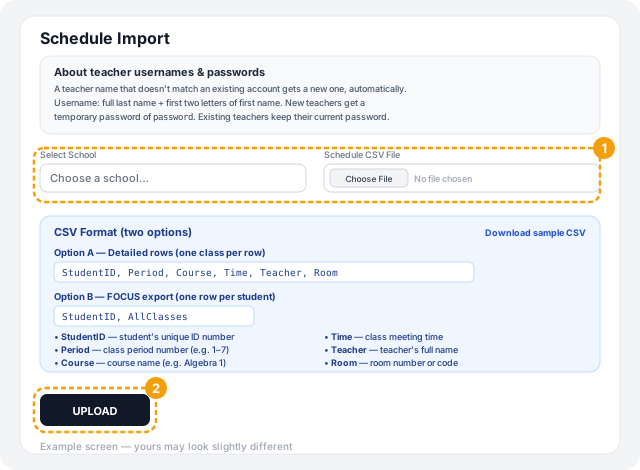
Schedule Import, in the Admin Panel, reads a CSV of which classes each student is in and does the rest for you: it creates any section that doesn't already exist (matching on course, teacher and bell block), places each student in the right period of your active bell schedule, and creates a teacher account for any teacher name in the file that doesn't already match one. This is the quickest way to go from a blank school to a full schedule.
Your file needs one row per student per class, with these columns:
StudentID, Period, Course, Time, Teacher, Room
- StudentID — must match a Student SIS ID already in HallTracker from step 1. A row for a student HallTracker can't find is skipped and listed as a warning.
- Period — the class period number.
- Course — the course name. Matched by name, or created if it doesn't already exist at your school.
- Time — the class meeting time, informational only.
- Teacher — the teacher's full name.
- Room — the room number or code.
A sample is available from Download sample CSV on the upload page, including a second format for schools exporting directly from FOCUS.
Upload runs the whole thing at once, and the result shows students updated, schedules inserted, sections created, and teacher accounts created, with warnings for anything skipped (a student not found is the most common one). Expand About teacher usernames & passwords on the upload page before you run it for the first time, so you know what a new teacher's sign-in looks like.
Building sections by hand
For a single new section, or a mid-year change, create it directly instead:
- 1. In the Admin Panel, open Sections, then choose to create a new one.
- 2. Choose the Course, Bell Block (period), Assigned Teacher and Room.
- 3. Choose Create Section.
The same course, teacher and bell block combination can't be created twice. A new section starts with no students enrolled — add students to it from each student's own Schedules page, or run the schedule import again with just that class's rows.
Troubleshooting
Next: Import parent and guardian contacts.
Still stuck? Contact us and we'll help.