
Create your bell schedule
The bell schedule lists your school's periods and when each one starts and ends. Every on-campus section is placed in a period of the bell schedule, and the schedule import needs an active bell schedule to work. Create it first, before sections.
Steps
-
1. Start a new schedule
In the Admin Panel, open Bell Schedules, check the school shown at the top, and choose New Schedule.
-
2. Name it and make it active
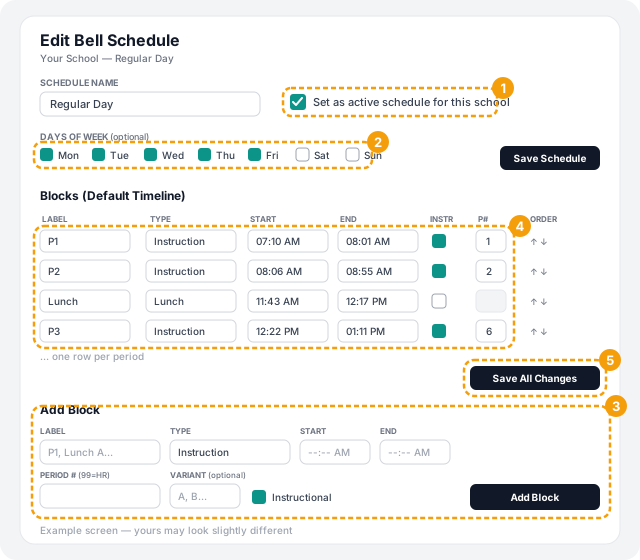
Give it a name such as Regular Day, and tick Set as active schedule for this school. Your school uses one active schedule as its default.
Under Days of Week, tick the days this schedule applies to, usually Monday to Friday for your regular day, and it's used automatically on those days each week. Leave Rotation Day # blank unless your school rotates days (see below). Choose Create, then open the schedule with Edit. Save Schedule on this page saves the name, active setting and days.
-
3. Add a block for each period
At the bottom, under Add Block, add one block for each period, lunch or other part of your day, then choose Add Block. For each one, fill in:
- Label: a short name, up to 20 characters, such as P1 or Lunch A.
- Type: Instruction for a class period, Lunch for lunch, and so on.
- Start and End times.
- Period #: the period number classes will use. Use 99 for homeroom. Leave it blank for lunch.
- Instructional: tick it for class periods and leave it unticked for lunch.
- Variant (optional): leave blank unless you need an alternate version of the timeline, such as A and B.
-
4. Check the block list
Your blocks appear in the Blocks (Default Timeline) list. You can change any value right in the list, reorder blocks with the up and down arrows, or remove one with Delete.
-
5. Save All Changes
Edits to blocks in the list are only kept when you choose Save All Changes. Finally, on the Bell Schedules list, check the schedule is marked Active. If it isn't, choose Set Active on it.
Early release, testing days and rotations
- Other schedules: create more schedules, such as Early Release or Testing Day. The quickest way is Duplicate on an existing schedule, then edit the times.
- Days of Week: a schedule with days ticked is used automatically on those days each week. Give your early-release schedule just Wednesday, for example.
- Calendar overrides: put a different schedule on a specific date. See below.
- Rotation Day #: if your school rotates days, set the day number on each schedule. Duplicating can shift the period numbers for you.
Use a different schedule on a specific date
For a one-off such as an early release, a testing day or a PSAT, assign a bell schedule to that date with a calendar override. You can have one override per date.
- 1. On the Bell Schedules page, choose Calendar Overrides.
- 2. Under Add / Update Override, pick the Date and the Schedule to use that day. Add a Reason if you like, for example PSAT or Early Release.
- 3. Choose Save Override. It appears under Overrides in Range.
- Saving an override for a date that already has one replaces it.
- The list shows the dates between From and To at the top. Change them and choose Apply Range to look at other dates, or Reset to go back.
- To go back to the normal schedule for a date, choose Remove next to its override.
What comes next
With an active bell schedule in place you can create sections one at a time. Or, to load many at once, import your students' schedules from a CSV file: the import places each class in the right period and can create the sections and teacher accounts for you.
Troubleshooting
Next: Import students and build your sections.
Still stuck? Contact us and we'll help.