
Import parent and guardian contacts
Bring in each student's parent and guardian contacts from one file, so you can reach families. The file lists each student with a primary and a secondary contact. Only contacts marked as having custody are imported.
Before you start
- Import your students first. Contacts are attached to students that already exist, matched by Student ID. See Import students and build your sections.
- Use a FOCUS parent contact export, or any CSV with the same kind of columns: a Student ID, then name, phones and email for a primary and a secondary contact, and whether each has custody.
- Have the custody columns ready. You must map both the primary and the secondary custody column, and a contact is only imported if its custody value is a yes.
Steps
-
1. Open Parents → Import CSV
In the Admin Panel, choose Parents. The Guardians page lists everyone already imported, with a search box and a Bounced email only filter. Choose Import CSV at the top right.
-
2. Upload your file
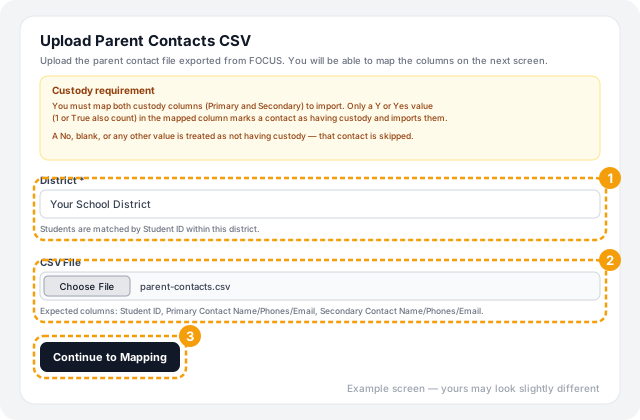
Read the Custody requirement notice. Then choose your District, which HallTracker uses to match Student IDs so a repeated ID in another district can't attach a contact to the wrong student. Choose your CSV File and select Continue to Mapping. Nothing is imported yet.
-
3. Check the column mapping
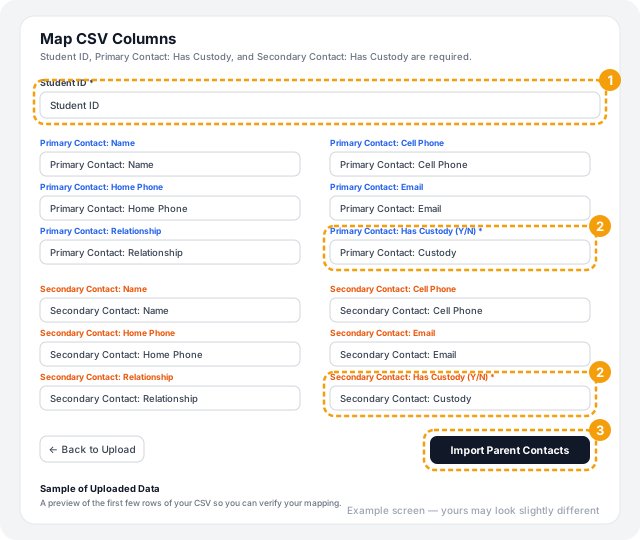
HallTracker guesses which of your columns is which and marks the guesses auto-matched — verify. Check each one against the Sample of Uploaded Data at the bottom of the page. Three fields are required:
- Student ID
- Primary Contact: Has Custody (Y/N)
- Secondary Contact: Has Custody (Y/N)
Name, cell phone, home phone, email and relationship (Mother, Father, and so on) are optional for each contact. Change any that were guessed wrong, then select Import Parent Contacts. Use ← Back to Upload to start again.
-
4. Read the result
A banner summarizes the import, for example: "Processed 1546 rows. Matched students: 1546. Guardians created: 12. Links created: 12. Unmatched student rows: 0. Rejected guardian rows: 263."
- Matched students — rows whose Student ID was found.
- Guardians created — contacts that weren't in HallTracker yet.
- Links created — new connections between a guardian and a student.
- Unmatched student rows — Student IDs HallTracker doesn't have. Import those students first.
- Rejected guardian rows — contacts that couldn't be imported (see below).
How contacts are matched
- Existing guardians are reused, not duplicated. A contact is matched within your district by email address first, then by cell phone number. A matched guardian only has blanks filled in, such as a missing email, cell phone or name.
- One guardian, several students. A parent with more than one child is one guardian linked to each student.
- Running it again is safe. Links that already exist are updated, not repeated, which is why a second run reports few or no new guardians.
- Custody: a contact is imported only when its custody value is Y or Yes (1 and true also count). A No, a blank or anything else means no custody, and that contact is skipped without being saved. It isn't listed as rejected either.
Fix rejected rows
When some contacts are rejected, choose Download Rejected Rows CSV on the import page. The file lists each rejected contact with the reason. Two reasons are possible:
- No identifier — the contact has a name but no email, cell phone or home phone, so HallTracker can't tell it from anyone else. Add a way to reach them in your source data and import again.
- Email and phone conflict — the email belongs to one guardian already in HallTracker and the cell phone to a different one. Decide which is right, correct your file or the existing guardian, and import again.
Troubleshooting
Still stuck? Contact us and we'll help.